


In this guided tour to MyHeritage we show you tips to build your family tree on MyHeritage, how to find useful records, what you can get for free, unique MyHeritage tools, DNA pointers and more.
A guide to using MyHeritage for family history
When doing our family history, we need historical records to search, a space to create a family tree, and very likely DNA tools too. International family history website MyHeritage provides these resources and many more besides. Read on to learn how MyHeritage can help you trace your family story, whether you’re on the first chapter or have been researching for years.

🔗MyHeritage guide: quick links
- MyHeritage family tree builder tips for beginners
- How to adjust your preferences and privacy settings on your MyHeritage Family Tree
- Further MyHeritage settings
(including language preference, a description for your family tree, and birthday & anniversary notifications) - How much does MyHeritage cost after free trial?
- What MyHeritage plans or memberships are available?
- How do I get the MyHeritage app? & what does the MyHeritage app do?
- How to share my family tree from MyHeritage / how to invite family
- How to delete your tree from MyHeritage
- How to delete a person from your tree on MyHeritage
- How can the MyHeritage Knowledge Base help me?
- How to search for people on MyHeritage
- Using Discoveries on MyHeritage: Matches by people, Matches by source, Instant Discoveries & Cousin Finder
- Photos: digital photo tools on MyHeritage
📰 Country Coding flags on MyHeritage family trees
MyHeritage has introduced Country Coding flags for family trees – small circular flags that appear on your tree to show the country associated with each ancestor.
This free feature works in all family tree views on the MyHeritage website (Family, Pedigree, Fan and List), helping you visualise where your ancestors lived and spot migration patterns across generations.
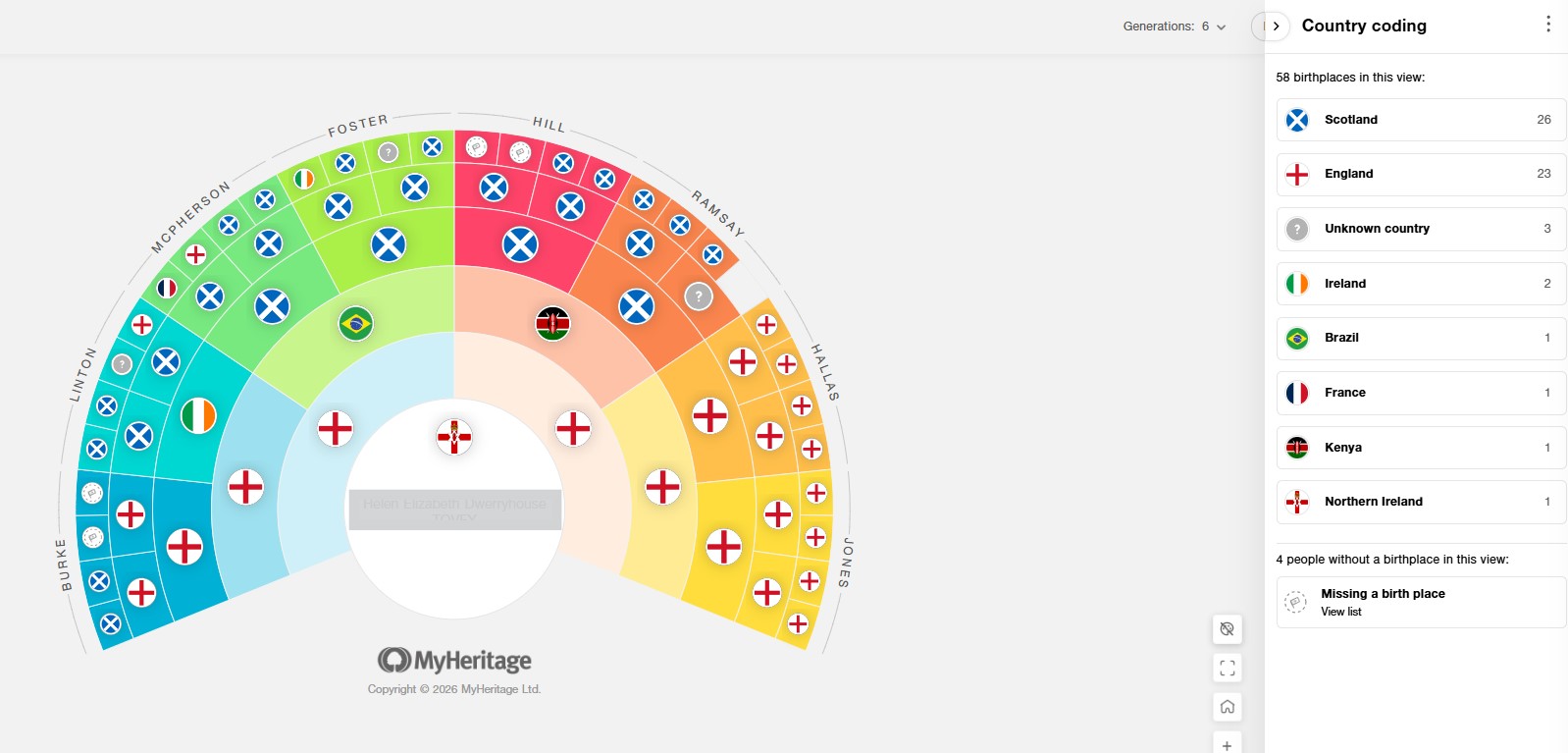
Country Code flags displayed on the Fan view family tree.
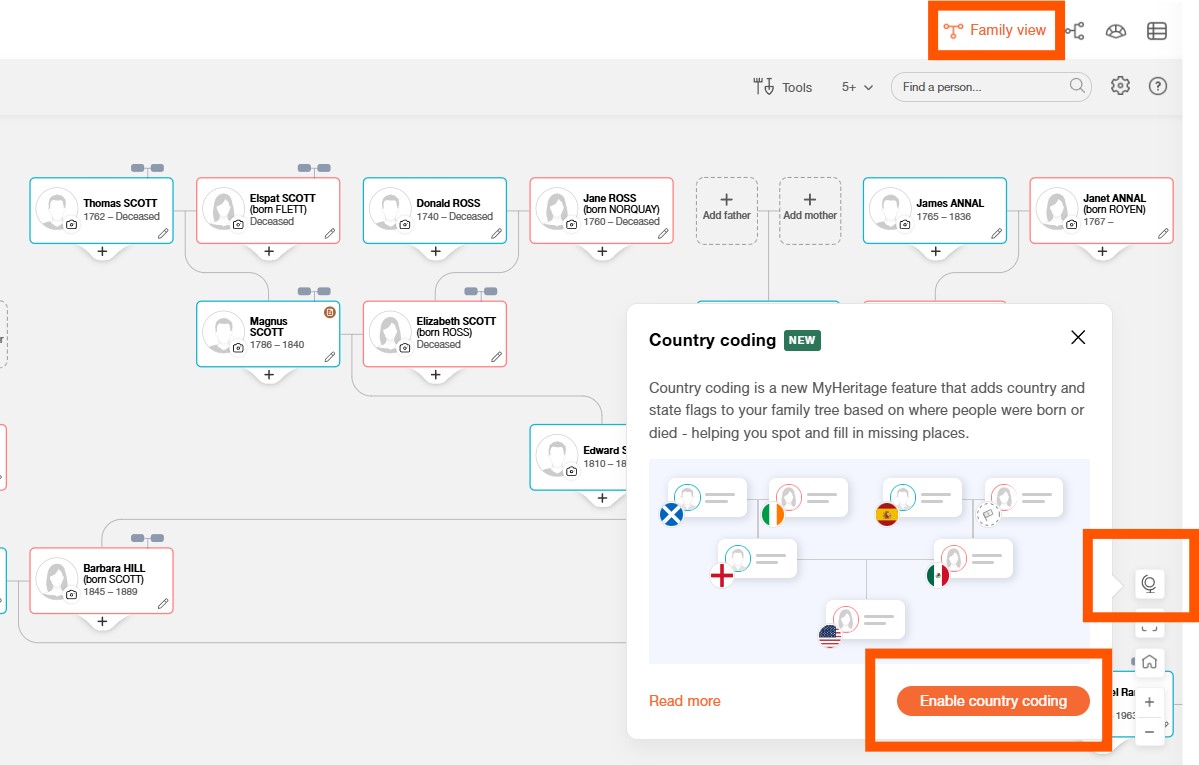
Select the globe icon in Family View and choose ‘Enable Country Codes’.
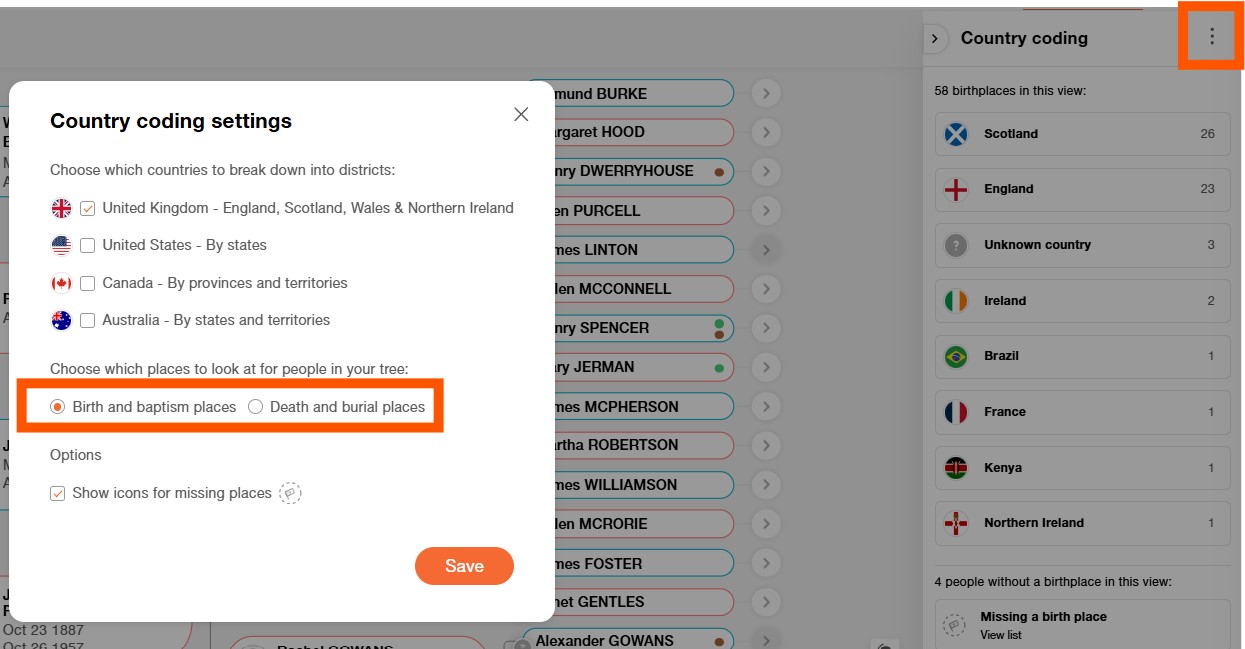
Adjust which location determines the flag using the settings menu.
By default, the flag shown is based on the birth or baptism location for each person in your tree, though you can change this to display the country for a death or burial location instead.
Because borders and place names change over time, MyHeritage uses geolocation data to determine the relevant modern-day country when displaying the flags. The result is a quick visual way to see where your ancestors lived and identify migration patterns within your family history.
MyHeritage family tree builder tips for beginners
If you are new to family history, the MyHeritage Tree Builder is a great place to start your family tree.

Step 1 - How to set up your family tree on MyHeritage: Go to MyHeritage.com, create a free account, select ‘Family tree’ from the menu, and begin adding your details, then those of your parents and grandparents. Don’t worry if you have gaps – doing your family history will help you fill them! In the meantime, simply select 'Done' and MyHeritage will set up your tree.
If you are building your tree on the MyHeritage.com website the maximum number of people can add with a free account is 250.
If you wish to add further people consider downloading the free MyHeritage Tree Builder software to your PC (as of 2025, Tree Builder no longer supports Mac).
Step 2 - Finding your way around your family tree on MyHeritage
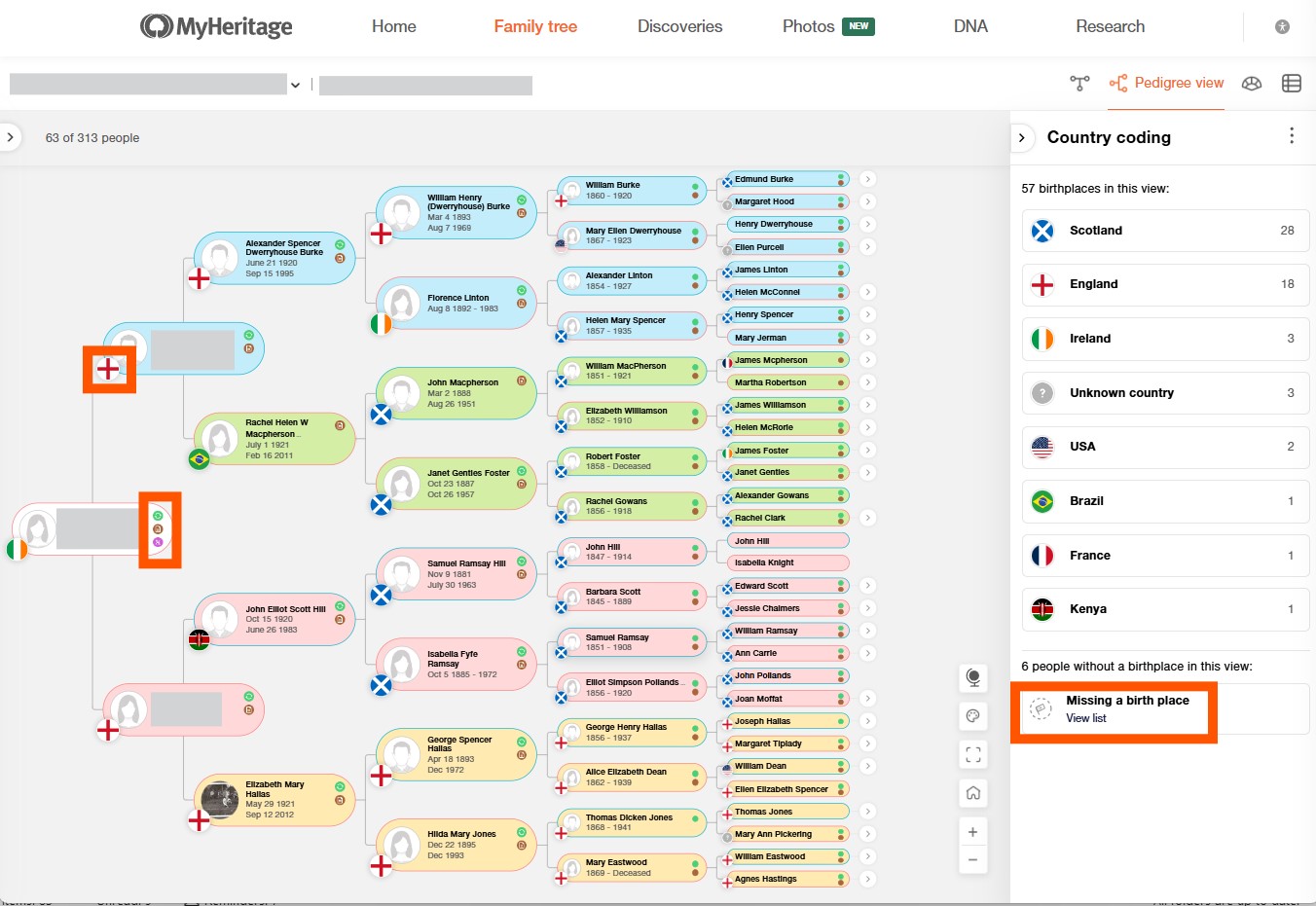
Note the colour coding for each of your four grandparent branches: green for your father's father; blue for your father's mother; pink for your mother's father and orange for your mother's mother. This can be helpful in orientating you, when you've worked back many generations in your tree.
The icons displayed provide a helpful point for further research:
- Green = 'Smart Matches': click to view matches for that ancestor as found in other people's trees on MyHeritage.
- Brown = 'Record Matches': click to view historical records that match that person.
- Purple = 'DNA Matches': click to view your DNA matches.
In the example above we have enabled the 'Country Coding' - so a flag icon is displayed for most people. Where you haven't included a birth location for someone on your tree, no flag will be displayed. Those missing a birth place will be listed in the bottom right-hand corner of the window.
Step 3 - Searching for clues about your ancestor from your MyHeritage family tree
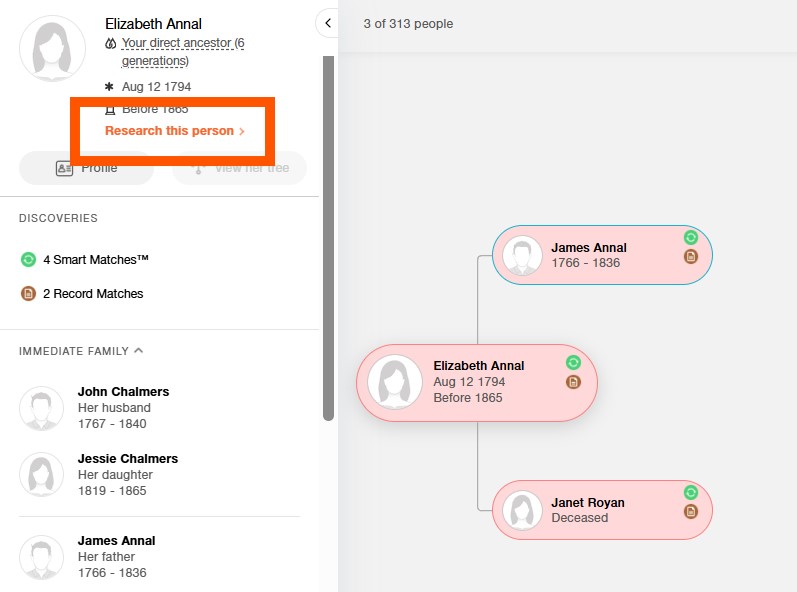
When you select someone on your family tree, summary details for them will be displayed in the column on the left-hand side. Select 'Research this person'.
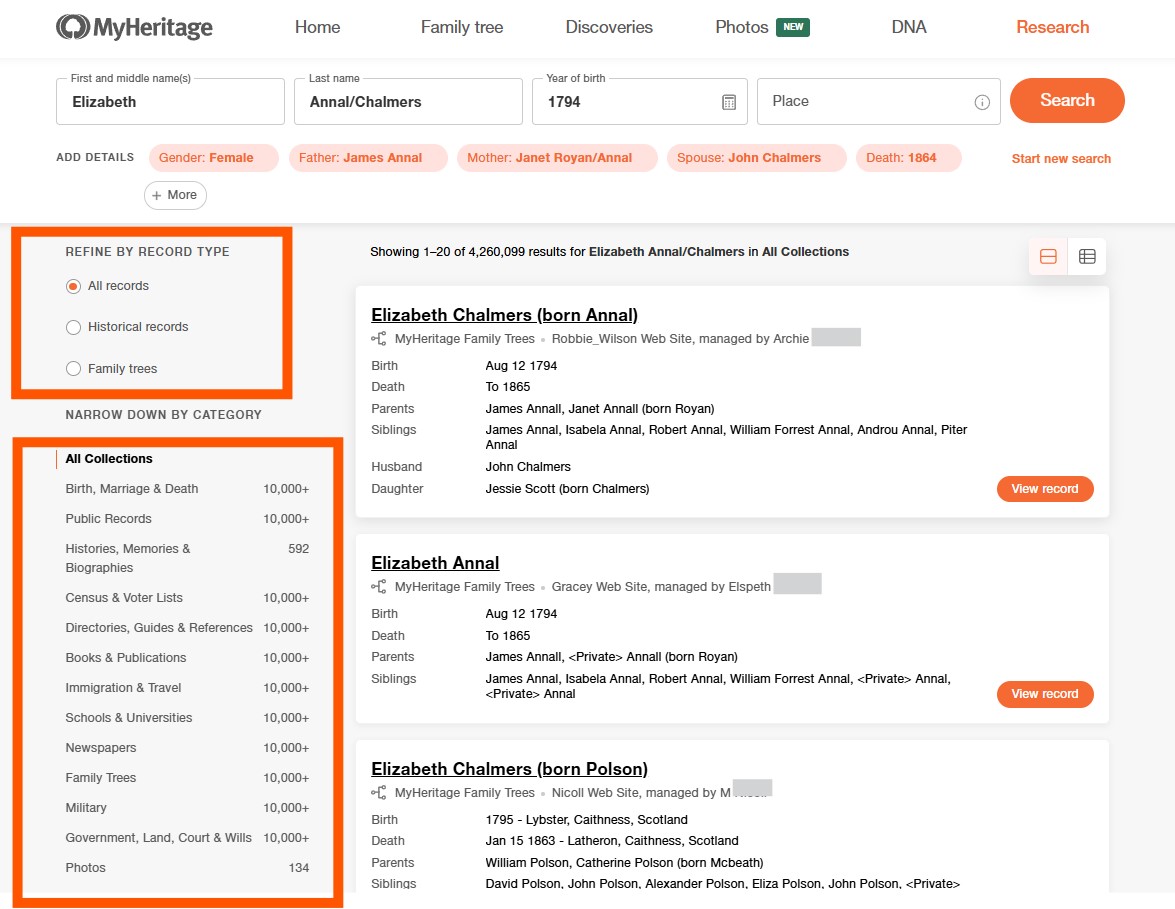
The default view will show a list of search results with matches for that ancestor in other people's trees on MyHeritage displayed at the top of the list, as shown above.
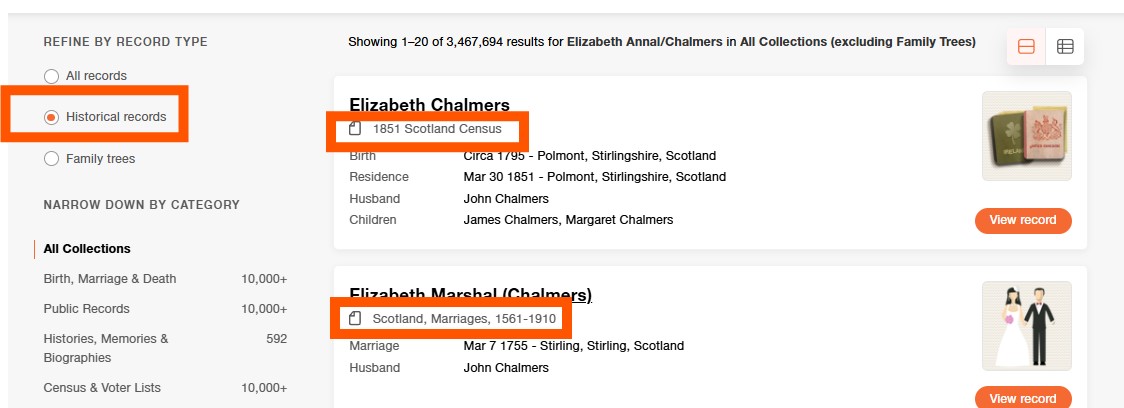
To receive search results solely from historical records for them, simply select 'historical records' (see top left).
Very often you will find mention of your MyHeritage 'site' - by this MyHeritage just mean your family tree (or family trees, if you have more than one), your photos and your profile etc. Eg all the things you've created or added to your MyHeritage account. By doing this you are effectively building a mini family history website on the MyHeritage platform.
How to adjust your preferences and privacy settings on your MyHeritage Family Tree
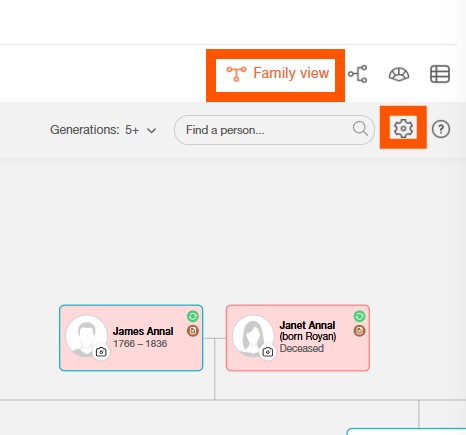
When viewing your family tree, select 'Family View', then select the settings cog.
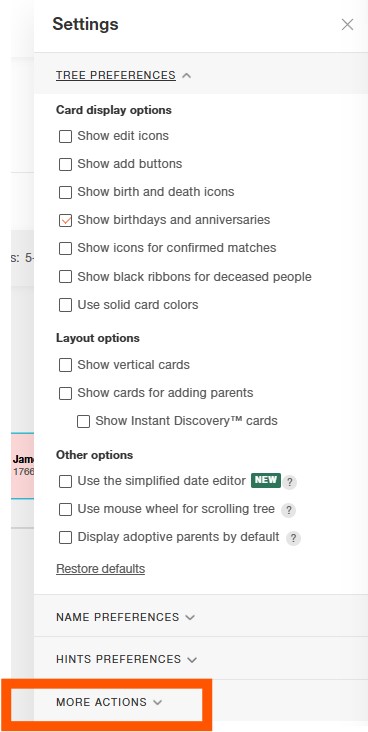
- The settings window will automatically display as above with 'Tree preferences' shown.
- Name preferences allows you to choose how to have surnames, maiden names, titles (eg Dr etc) and suffixes displayed.
- Hint preferences lets you choose whether to receive hints from family trees and historical records, hints solely from historical records, or whether to opt out of receiving hints entirely.
- 'More actions' contains several extremely useful options, which will cover below.
![]()
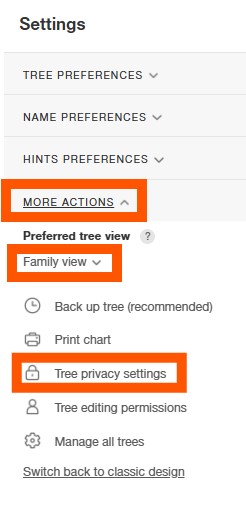
In the 'More actions' you can choose which is your preferred tree view.
Back up tree is where you can sign up for the MyHeritage back up service (£4 per month), which will create a back up of your tree and photos once a month. It also allows you to recover photos or branch of your tree that you may have accidentally deleted. Note that when you create your family tree on MyHeritage, MyHeritage will automatically email you with details of your backed up tree once a month, in GEDCOM format, at no extra charge (ie even if you don't pay the £4 per month fee).
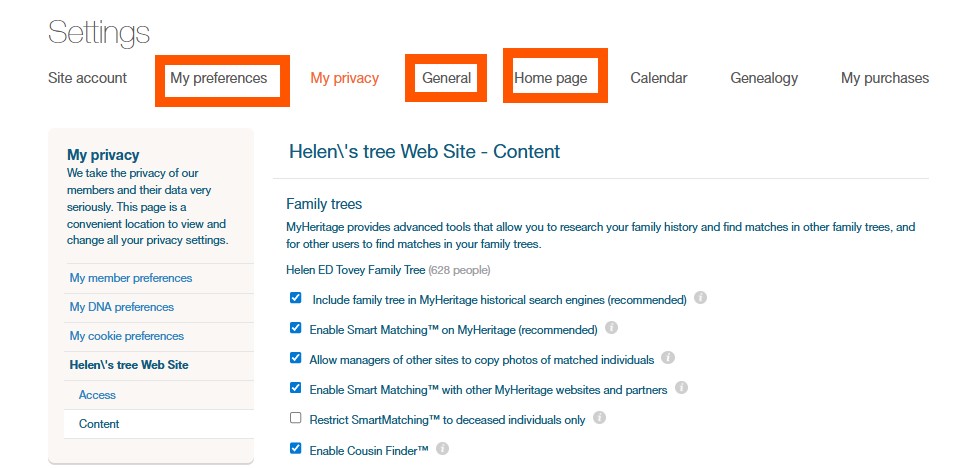
The 'Tree privacy settings' provides an extremely detailed selection of items - such as whether you wish to receive SmartMatches, whether you wish to allow or prevent other MyHeritage users from copying your photos on your tree to their tree, and many more options. Your preferences can be applied on a tree-by-tree basis - for instance if you have more than one tree, you can define your preferences for each tree - rather than having to make do with a site-wide decision not to receive SmartMatches say.
Further MyHeritage settings
My preferences: While exploring your settings, select 'My Preferences' to choose whether to receive birthday, marriage anniversary and other anniversary notifications for family members.
General: In 'General' you can select your preferred language (from a range of 50 languages) for using on the MyHeritage website. (Customer support is available in 20 languages).
Home page: Via the 'Home page' menu, this is where you can write a description for your MyHeritage site - welcoming people to your family tree, explaining your research goals, letting people know how they may contact you and so forth.
How much does MyHeritage cost after free trial?
MyHeritage provides a 14-day free trial, to let you explore the website and the records to see whether it meets your family history needs. There are several different types of MyHeritage plans, listed below.
What MyHeritage plans or memberships are available?
Family site plans: MyHeritage provides membership plans that allow you to build your tree. These plans are callled 'Family site plans' and are available as a Premium Family site plan (with a family tree up to 2,500 people), or a PremiumPlus Family site plan (with no limit to the number of people on your tree).
Data plan: The MyHeritage data plan is aimed at people who solely wish to pay to access the records (for instance they may be creating their family tree using family history software).
Photo plan: This gives access to MyHeritage photo features, including photo colourisation, enhancement and animation ( Deep Nostalgia™).
Complete plan: MyHeritage's Complete plan combines the tree-building functionality of the 'Family site plan', the access to the historical records of the 'data plan', and most of the photo tools of the 'Photo plan' (apart from the unlimited scanning of the Reimagine photo plan app). This is the most popular MyHeritage membership plan.
Omni plan: This provides all the benefits of the Complete plan, but access to historical newspapers website OldNews.com and full access to Legacy Family Tree webinars.
How to upgrade your plan
When logged in to MyHeritage, select your name from the menu bar, go to 'Site settings' then 'Upgrade your site plan'.
Find more details about the MyHeritage plans here.
How do I get the MyHeritage app? & What does the MyHeritage app do?
Get the MyHeritage app from Google Play or the App Store. For further details see here. The MyHeritage app can be used for tree building and record searching. It will sync with your MyHeritage website family tree too, and with your desktop/laptop family tree if you are using the Tree Builder software.
Reimagine - photo app. The MyHeritage photo app is called Reimagine. Find out more and download it from here. Once installed you can use the app to scan, enhance, colourise and animate your family photos. Note that there will be restrictions on the numbers of photos unless you pay the photo plan subscription (US$49.99 per year).
How to share my family tree from MyHeritage/ How to invite family
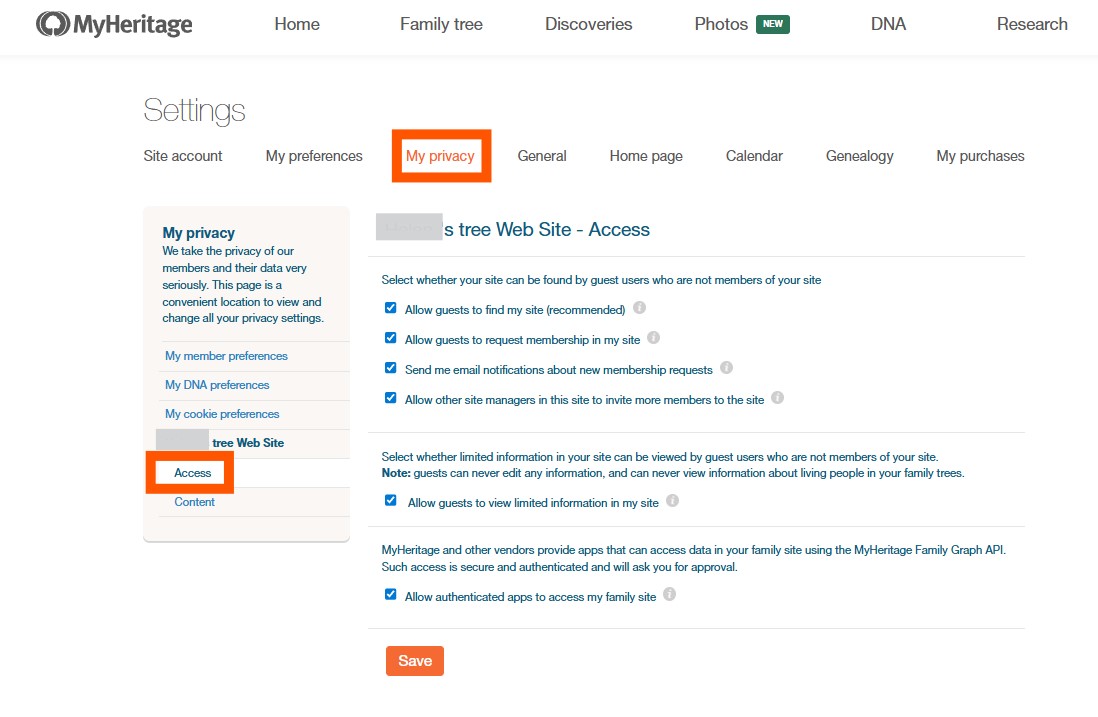
First check your privacy settings, to ensure that you will be able to be found by family members. In particular the 'Access' link provides a useful range of options to choose from, to make sure your MyHeritage site (aks your family tree) is as accessible as you'd like.
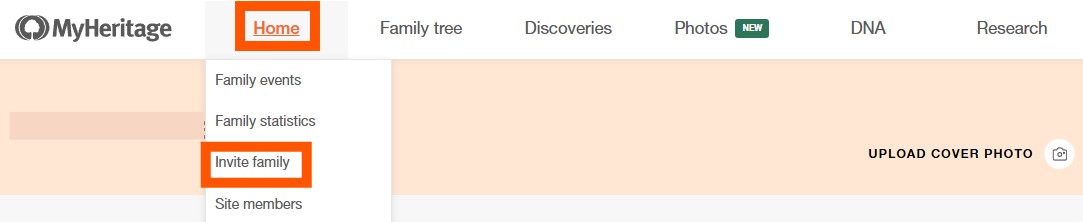
To invite family, simply select 'Home' from the main menu, and then 'Invite family' from the drop-down menu. You may enter the email address for people on your tree already, or invite them manually, or add new people to your tree and then invite them.
How to delete your tree from MyHeritage
Select 'Family tree' from the main menu, then select 'Manage trees' from the drop-down menu.
If your tree contains more than 50,000 people you will need to contact MyHeritage customer support in order to delete it.
If you have a new tree, you can, if you wish, rather than deleting your old tree, simply set your new tree as your default tree. To set your default tree go to 'Family tree', 'Manage trees' and select 'Set as default tree' (over on the right-hand side of the window) for your tree of choice.
How to delete a person from you tree on MyHeritage
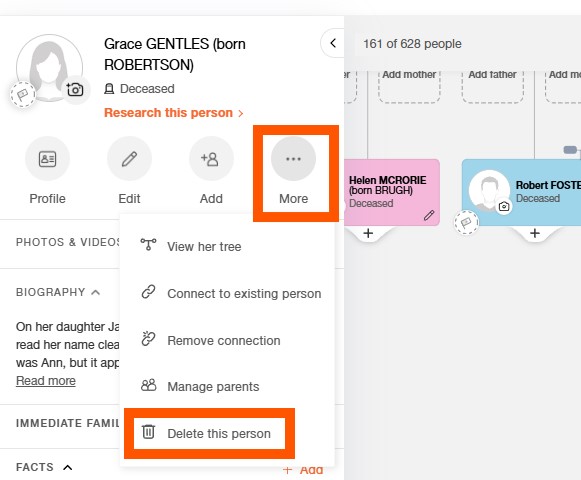
When viewing the sidebar details for the person you wish to delete, select 'More', and a drop-down menu will appear - which includes the option to 'Delete this person'.
Note that there is also the possibility to 'Remove connection'. This may be a useful option as the person will remain in your tree, but not attached to their parents or spouse in the way that they were - so you can always reattach them to your tree in the future, if the details of their correct correction are found.
How can the MyHeritage Knowledge Base help me?
The MyHeritage Knowledge Base aims to help you improve your family history skills and provide you with the information you may find yourself seeking as you do your family history research.
Search Learn for 503 useful blogs on a wide range of topics, Genealogy course for a 5-hour beginner introduction to family history, and - perhaps most useful of all - Downloadable resources - for all sorts of guidance on future-proofing your family history, getting organised, a children's activity sheet and much more.
How to search for people on MyHeritage
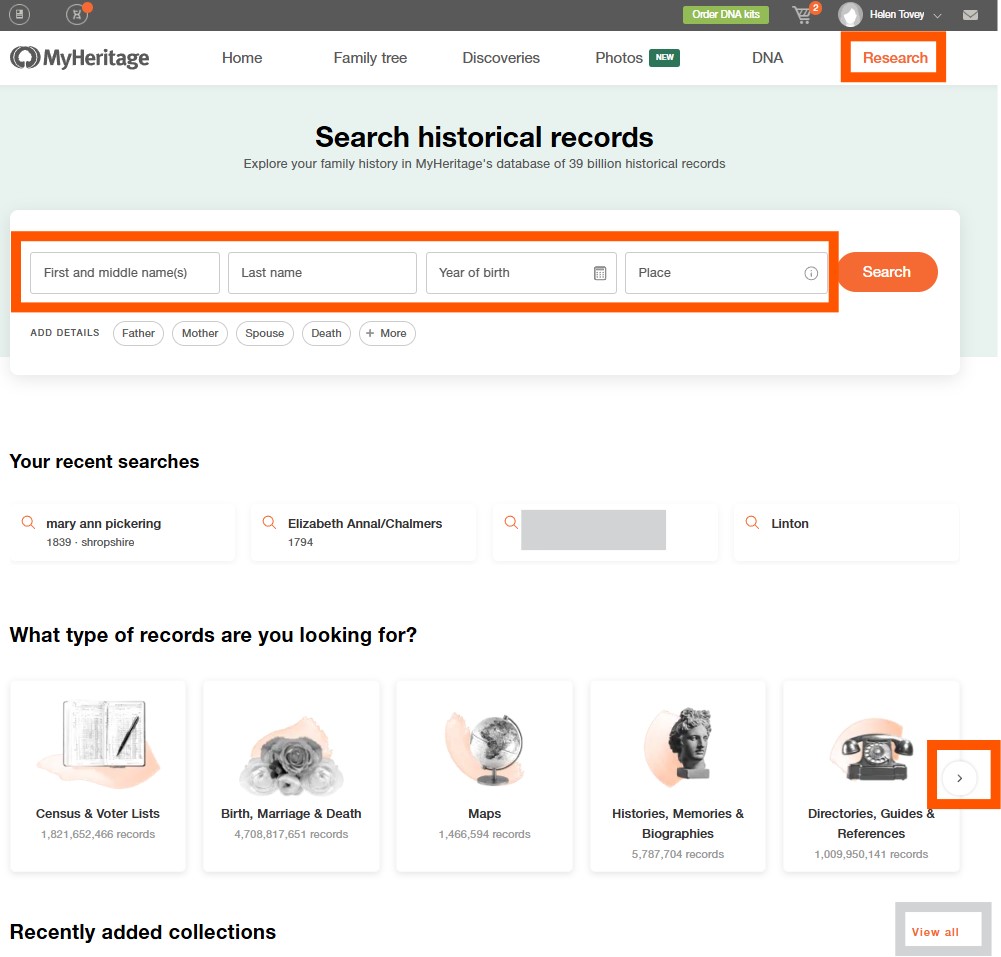
To look for people within the historical records on MyHeritage go to 'Research', then enter the details that you know (such as name, date, place). If you select 'Research' a drop-down menu will appear - which which you can opt to search across all the billions of records that MyHeritage provides access to. Or whether you wish to browse the card catalogue and look for a specific record collection that you would like to search for your ancestor within. Or you can choose one of the themes, to look across a range of record collections that are relevant to that theme.
Note the small arrow on the right-hand side, which in another way of viewing the themed collections or topic. The themed collections provide a few additional fields in which you can enter search terms to help to refine your search results.
And don't miss 'View all' - which will allow you to see further 'Recently added collections'.
Using Discoveries on MyHeritage: Matches by people, Matches by source, Instant Discoveries & Cousin Finder
While the Research menu allows you to conduct your own searches in the historical record collections, the Discoveries menu provides a number of avenues to provide you with potential details about your family. These avenues are: Matches by people, Matches by source, Instant Discoveries and Cousin Finder.
Matches by people looks for your ancestor's name in other sources - including other members MyHeritage family trees, the FamilySearch Family Tree and historical record.
To obtain Instant DiscoveriesTM you are invited to add additional details about your ancestors, to enable yet further information to be located about them.
Cousin FinderTM looks through the trees of other MyHeritage members to see if you and they share common ancestors.
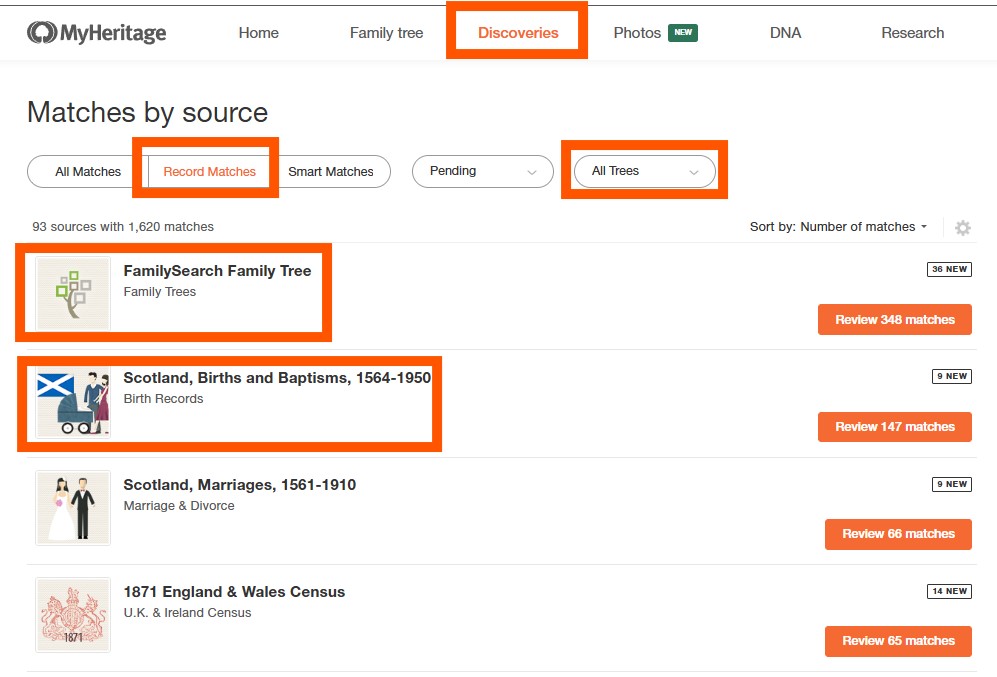
Matches by source - from a traditional family history point of view, of these four features perhaps Matches by source is the most useful for the active family historian, as it provides an interface over which you will have a lot of control, determining exactly what sort of matches you wish to see.
For instance, in the image above, we have chose solely to view 'Record matches'. This means that all the matches we will view will be based on details found in a record. Note that top of the list of the FamilySearch Family Tree (so effectively this means you will be looking at the matches from family tree research that others have conducted on FamilySearch). However, the results below that are record matches that have been found within specific record collections - such as Scotland, Births and Baptisms. Note too that you can look for matches in all your trees, or you can opt to just look for matches within one of your trees.
Photos: digital photo tools on MyHeritage
MyHeritage's innovative photo tools are some of the most eye-catching elements of the MyHeritage world. Fun to share with family and useful for encouraging interest from fellow family members, they also provide practical assistance in helping you to scan and repair your family photos.
To explore the full range of photo tools on MyHeritage, select 'Photos' from the menu. From My Photos you can view all the images you've uploaded so far, you can create and view albums.
- Photo tagger allows you to tag photos of a person who appears in multiple images - this is useful for quick work with group photos.
- Colorize works with both black and white and faded colour photos.
- Enhance works wonders with blurry pictures.
- Deep NostalgiaTM animates still photos of your ancestors.
- LiveMemoryTM creates video clips of photographs.
- While Scribe AI enables you to upload family history letters, documents, photos and so forth, in order to receive AI insights and interpretations.
We will cover the very useful MyHeritage DNA tools in a separate guide.