


In this guided tour to MyHeritage we show you tips to build your family tree on MyHeritage, how to find useful records, what you can get for free, unique MyHeritage tools, DNA pointers and more.
A guide to using MyHeritage for family history
When doing our family history, we need historical records to search, a space to create a family tree, and very likely DNA tools too. International family history website MyHeritage provides these resources and many more besides. Read on to learn how MyHeritage can help you trace your family story, whether you’re on the first chapter or have been researching for years.
MyHeritage News: March 2026, Country Coding flags on family trees
MyHeritage family tree builder tips for beginners
MyHeritage News:
Country Coding flags on family trees
In March 2026, MyHeritage has added country coding for family trees – in the form of small, circular flags that are displayed on your MyHeritage family trees.
Country Code flags are a free new feature that is available in all family tree views (Family, Pedigree, Fan and List) when using the MyHeritage website (as opposed to the app).
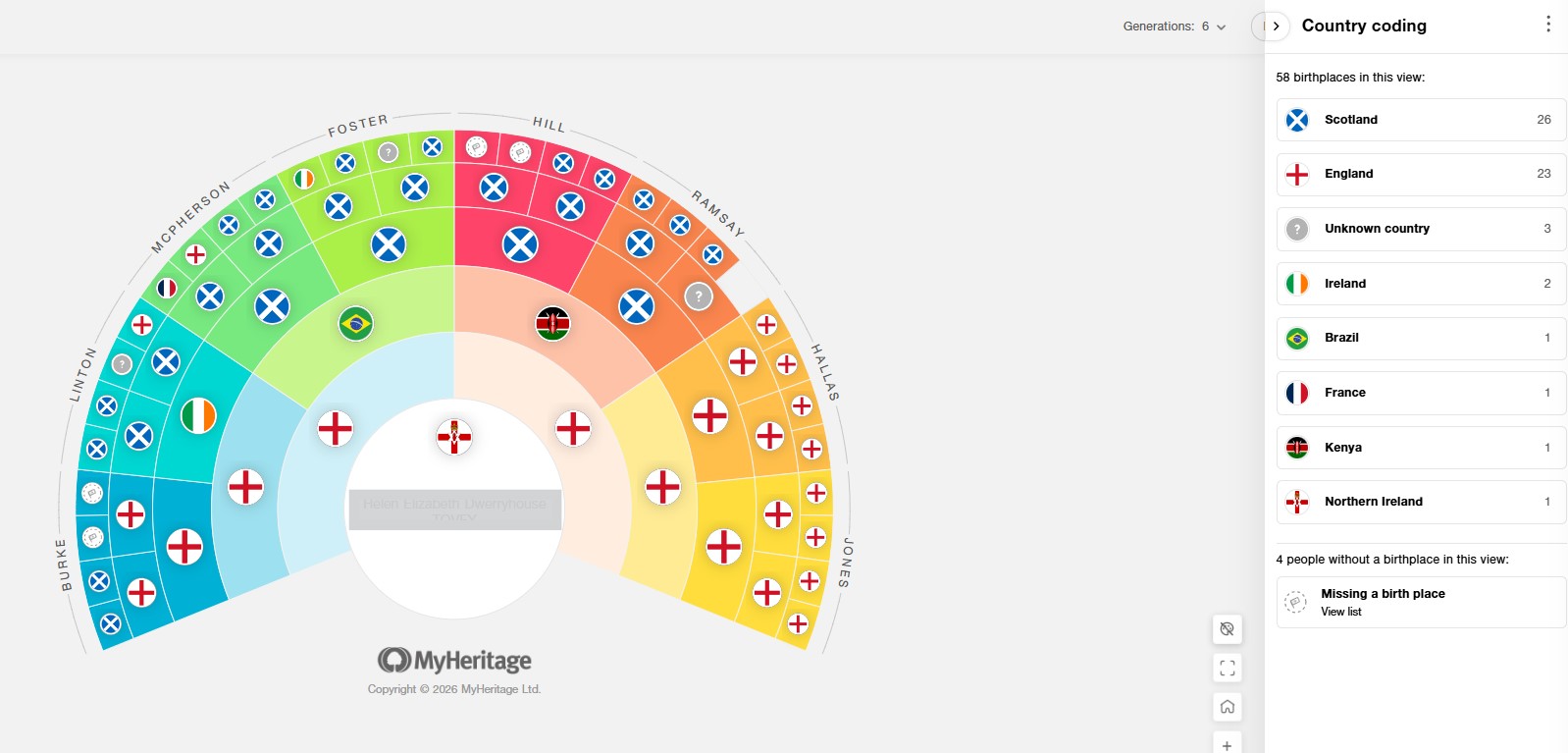
The Country Code flags on the Fan family tree chart.
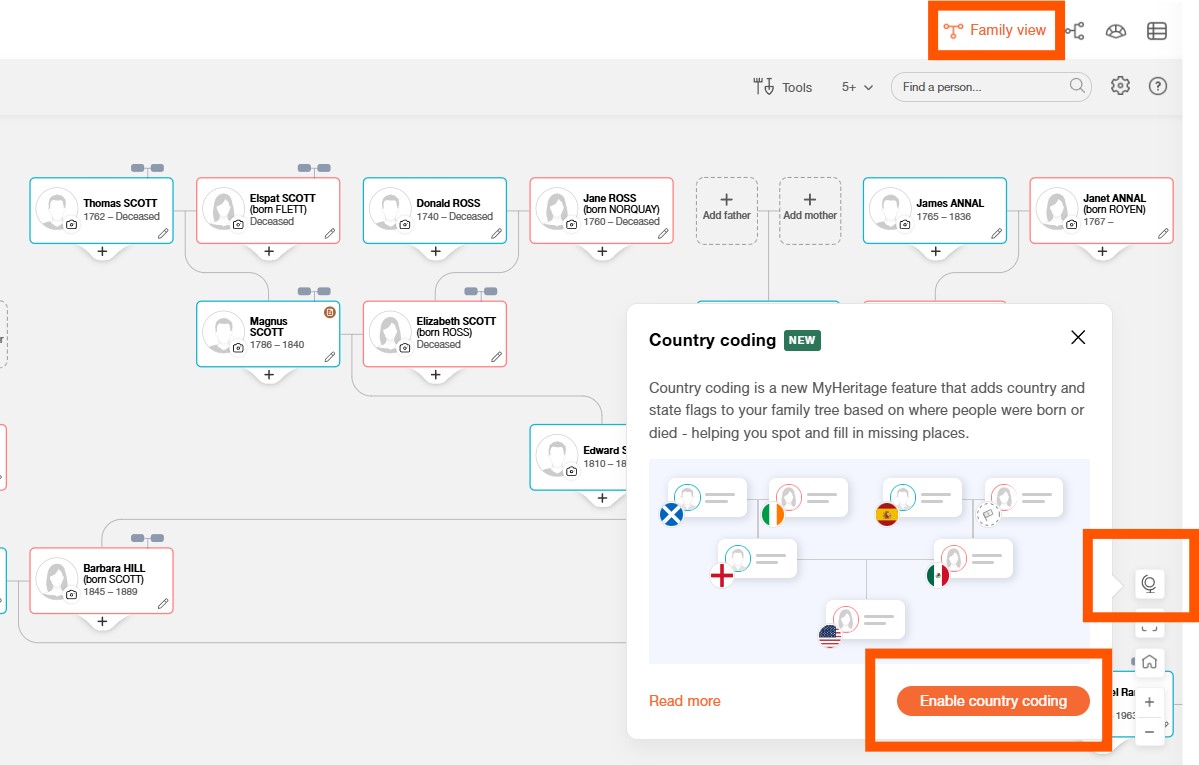
To enable the Country Codes, go to the MyHeritage Family view tree, select the small globe icon (see bottom right-hand side of image above), then select 'Enable Country Codes'.
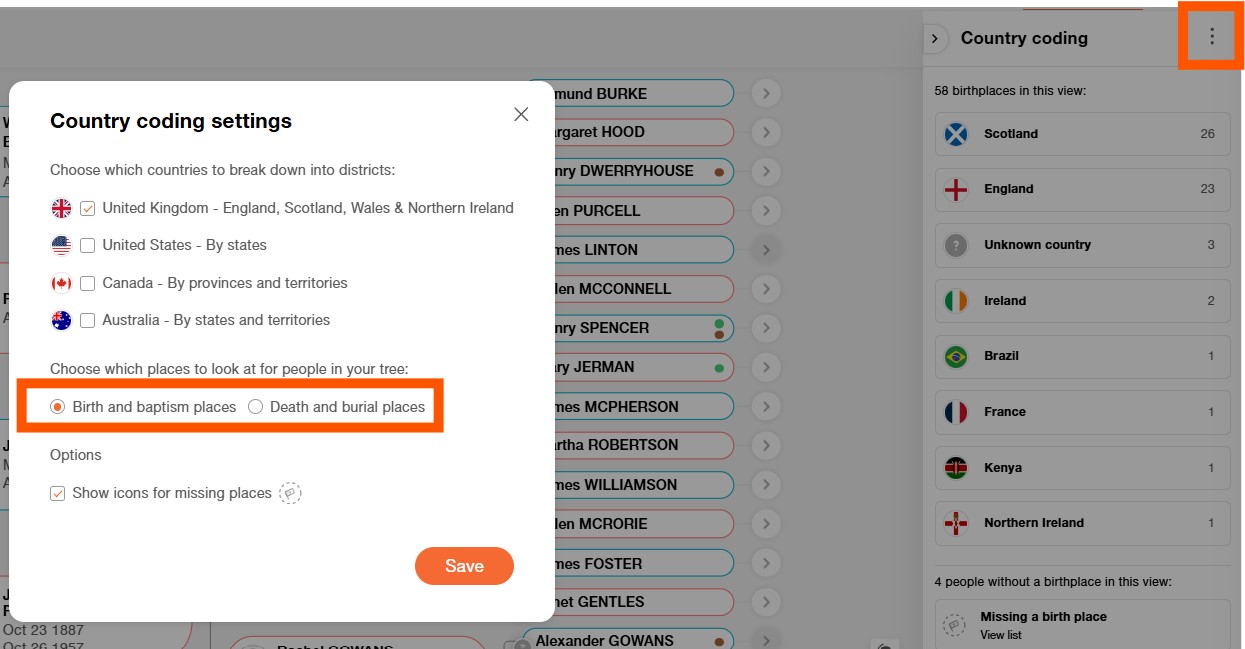
By default the county coding flag displayed is based on the birth or baptism location for each person on your family tree, (you can adjust this to a death or burial location instead if you wish). To make the adjustment, select the settings button (3 little dots) and then adjust your preferences on the pop-up window that appears. Then select 'Save'.
Boundaries and borders change over time, thus, if needed, MyHeritage will use geolocations to determine which modern-day country a place is in, and attribute the relevant flag accordingly.
MyHeritage hopes that by visualising locations on your family tree, you will be able to spot migration patterns for your family, perhaps helping you to notice places with connections to your ancestors, or adventurous journeys that they embarked on, if they migrated to lead lives in new lands.
MyHeritage family tree builder tips for beginners
If you are new to family history, the MyHeritage Tree Builder is a great place to start your family tree.

Step 1 - How to set up your family tree on MyHeritage: Go to MyHeritage.com, create a free account, select ‘Family tree’ from the menu, and begin adding your details, then those of your parents and grandparents. Don’t worry if you have gaps – doing your family history will help you fill them! In the meantime, simply select 'Done' and MyHeritage will set up your tree.
If you are building your tree on the MyHeritage.com website the maximum number of people can add with a free account is 250.
If you wish to add further people consider downloading the free MyHeritage Tree Builder software to your PC (as of 2025, Tree Builder no longer supports Mac).
Step 2 - Finding your way around your family tree on MyHeritage
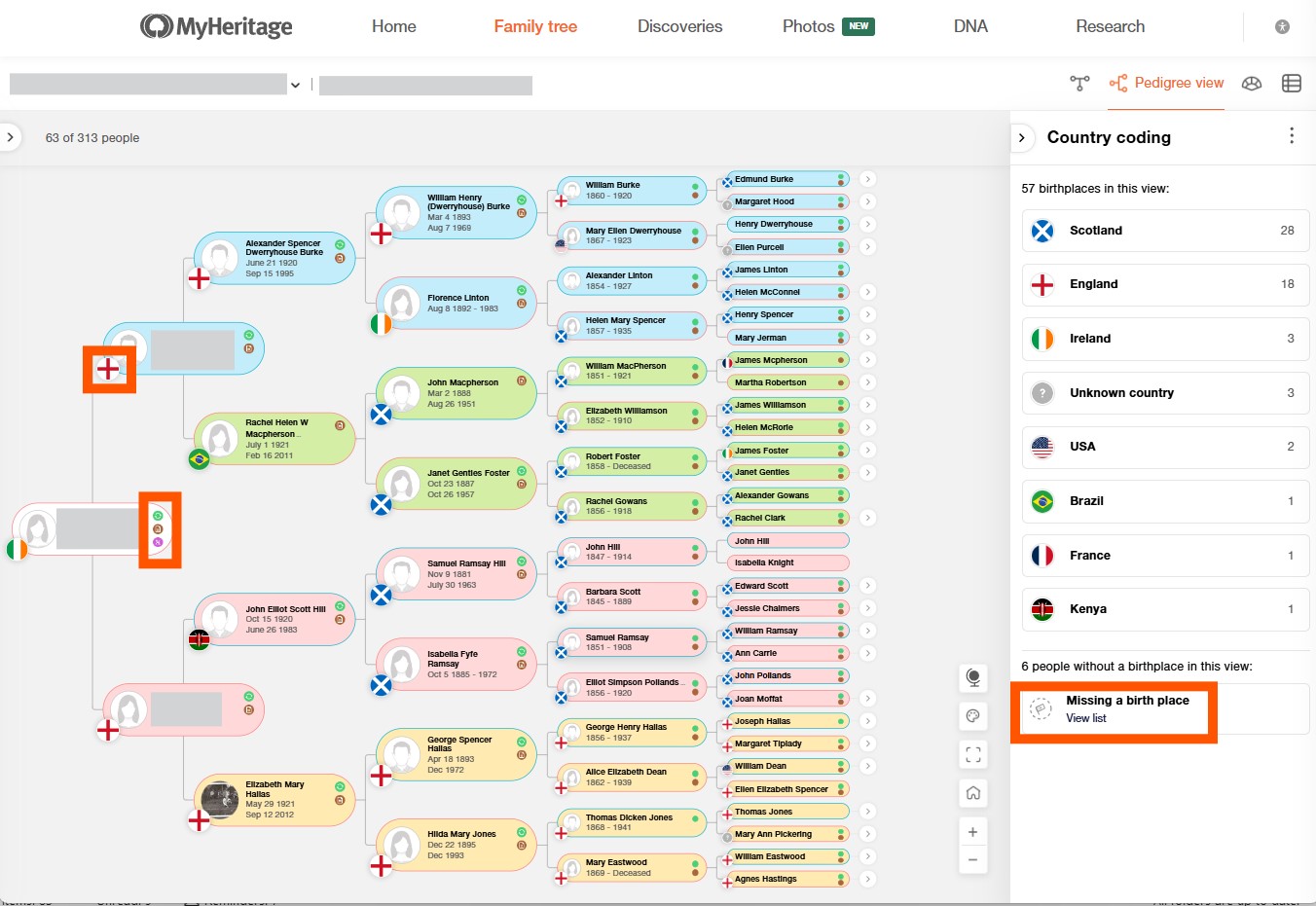
Note the colour coding for each of your four grandparent branches: green for your father's father; blue for your father's mother; pink for your mother's father and orange for your mother's mother. This can be helpful in orientating you, when you've worked back many generations in your tree.
The icons displayed provide a helpful point for further research:
- Green = 'Smart Matches': click to view matches for that ancestor as found in other people's trees on MyHeritage.
- Brown = 'Record Matches': click to view historical records that match that person.
- Purple = 'DNA Matches': click to view your DNA matches.
In the example above we have enabled the 'Country Coding' - so a flag icon is displayed for most people. Where you haven't included a birth location for someone on your tree, no flag will be displayed. Those missing a birth place will be listed in the bottom right-hand corner of the window.
Step 3 - searching for clues about your ancestor from your MyHeritage family tree
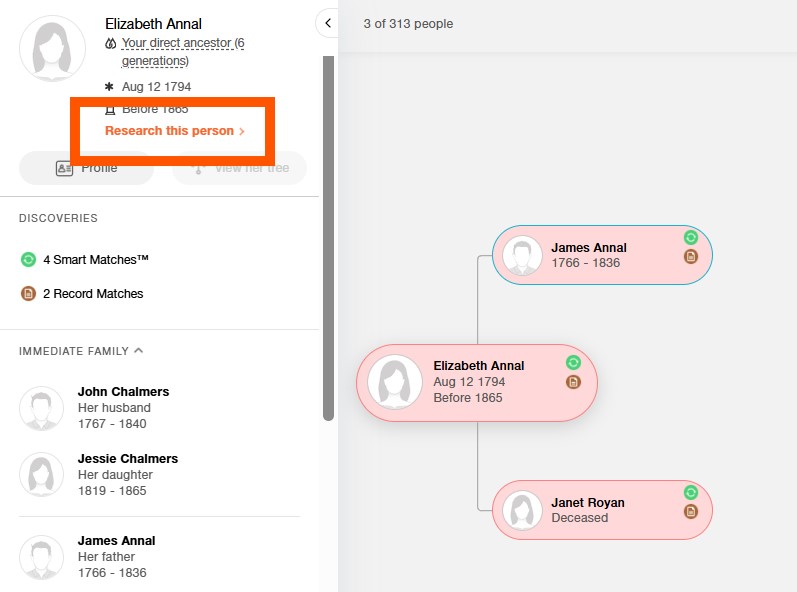
When you select someone on your family tree, summary details for them will be displayed in the column on the left-hand side. Select 'Research this person'.
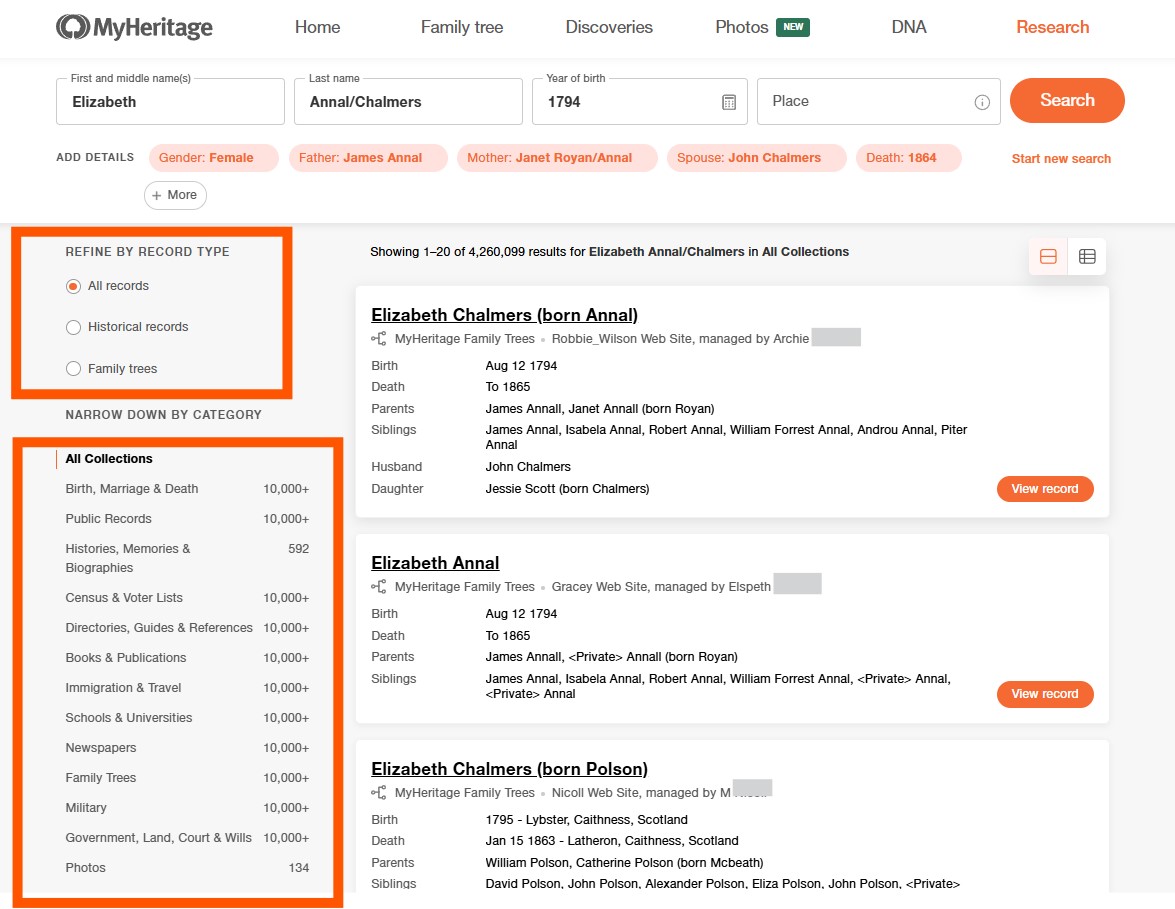
The default view will show a list of search results with matches for that ancestor in other people's trees on MyHeritage displayed at the top of the list, as shown above.
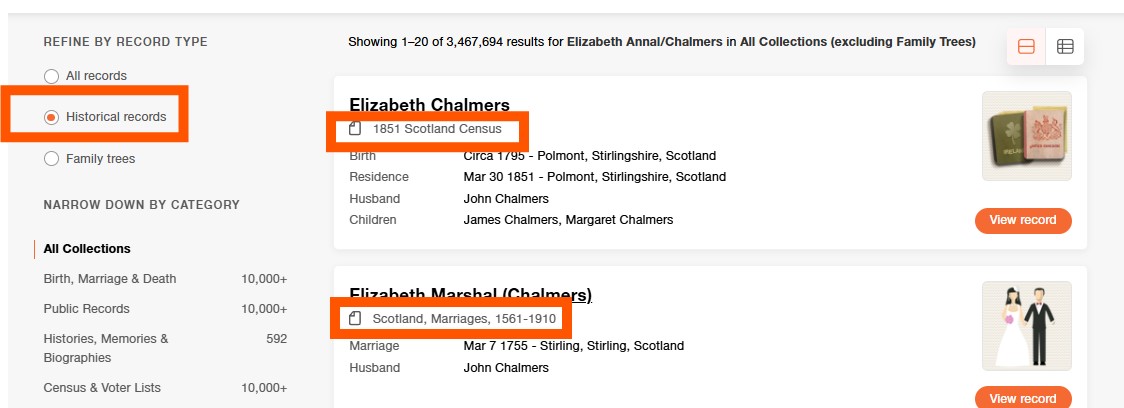
To receive search results solely from historical records for them, simply select 'historical records' (see top left).